
50+ Essential Git Commands for Beginners and Developers
This blog is for you if you are new to version control or a busy programmer looking for a refresher on git commands, GitHub commands, and git commands for developers. Our goal is to help you understand at least 50 essential git commands in context so you can appreciate not only what they do in your work as a developer, but also why they are useful.
Table Of Content
Why Understand Git and GitHub Commands?
Getting Started: Setup & Initialization
Daily Workflow: Basic Git Commands for Developers
Intermediate Git Commands for Programmers
Advanced Git Commands for Programmers
Important git Commands
Workflow Tips for Developers working with Git and GitHub Commands
Why This List Matters
Final Thoughts
Frequently Asked Questions
Why Understand Git and GitHub Commands?
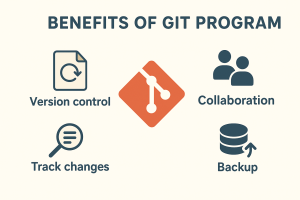
Version control is now a fundamental skill for every developer. Git enables you to track changes, collaborate easily, and keep your development history clean. Understanding the right GitHub commands enables you to use the tool that holds millions of repositories.
Using git commands for developers will help you be efficient, save you time when working through conflicts, and improve how you work with others. Digital commerce is one of the skills that sets the professional developer apart from someone just beginning their journey.
Getting Started: Setup & Initialization
1. git –version
Before running any additional commands, verify that git is installed and check the version.
2. git config –global user.name “Your Name”
3. git config –global user.email “you@example.com”
Set your username and email in the global configuration so Git can identify you for all future commits.
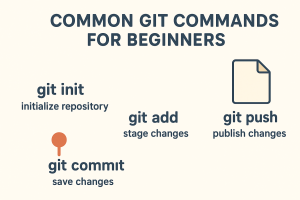
4. git init
Create/open a Git repository in your project folder; this signals the start of version control.
5. git clone <repo-url>
Clone (download) a repository from GitHub or any other remote source to your local machine.
6. git remote add origin <url>
Connect our local repository to a remote repository on GitHub or any remote repository, so we can push/pull changes easily.
Daily Workflow: Basic Git Commands for Developers
7. git status
Gives you the current state of your working directory – what has changed, what is staged, and what is untracked.
8. git add <file>
9. git add .
Stage specific files or all changes to files you modified for the next commit.
10. git commit -m “message”
Save your staged changes permanently with a meaningful commit message.
11. git pull
Retrieve changes from the remote repository and merge them into your current branch.
12. git push
Push your local commits to the remote GitHub repository so your work is backed up and can be shared.
13. git branch
List all branches, create a new branch, or delete an old branch.
14. git checkout <branch>
Switch between branches, or create a new branch with git checkout -b.
15. git merge <branch>
Merge another branch’s changes into your current branch—this is an excellent way to merge in work on a branch for a feature.
16. git log
See the history of commits to get a sense of what was changed and who changed it.
17. git diff
Show line-by-line differences between commits or between your working directory and last commit.
Intermediate Git Commands for Programmers
These git commands will help you get more done on complicated projects once you know the basics.
18. git get
It downloads changes from the remote repository but doesn’t automatically merge them. This is great for checking updates before they are added to the main codebase.
19. git reset –hard <commit>
Set your branch back to a certain commit and throw away all changes made after that. Be careful when you use this command.
20. git revert <commit>
Make a new commit that undoes a previous commit. This is a safer way to undo changes than resetting.
21. git stash
Saves changes that haven’t been committed yet so you can switch branches without losing your work.
22. git branch -d
Removes a local branch that you don’t need anymore.
23. git push origin –delete
Remove a branch from the remote repo.
24. git checkout –
Remove changes from your working directory and go back to the last version of a file that was committed.
25. git tag <name>
Make tags to mark important events in your project’s history, like when you release a new version.
Advanced Git Commands for Programmers
26. git rebase <branch>
To make the project history cleaner, move or reapply commits on top of another base branch.
27. git cherry-pick <commit>
Put the changes from a certain commit into your current branch.
28. git reflog
Show where your HEAD and branch references have been. This is helpful for getting back commits that you lost.
29. git clean -fd
Get rid of files and folders that aren’t tracked. Be careful with this command because it deletes files for good.
30. git merge –squash <branch>
Combine a branch but make all of its commits into one. Good for keeping things in order.
31. git rebase -i <commit>
You can change, reorder, or combine past commits with interactive rebase. This is a great way to clean up history before merging.
32. git submodule add <repo> <path>
Add another Git repository to your project. Great for dependencies or modules that can be used again.
33. git bisect start
Use binary search to find the specific commit that introduced a bug.
34. git log –oneline –graph –decorate
Show the commit history of your project in a small, easy-to-read format.
35. git show <commit>
See the details and changes for a specific commit.
Important git Commands
36. git branch -m <old>
Changes the name of a branch on your computer.
37. git push -u origin <branch>
Push a new branch to the remote and set it up to track automatically.
38. git remote -v
Show me all the remote repositories that are linked to your project.
39. git remote set-url origin <newurl>
If the URL of the remote repository changes, make sure to update it.
40. git show-ref –heads
Show references for all branches in the local area.
41.git blame <file>
Show which commit and author changed each line of a file.
42. git shortlog -s -n
Summarize the number of commits made by each author. This is useful for seeing how much each team member has contributed.
43. git archive –format=tar HEAD | gzip > release.tar.gz
Make a compressed archive of the version of your project that you are working on right now.
44. git bundle create repo.bundle –all
Put all of your repository files into one file. This is helpful for backups or transfers that don’t need to be connected to the internet.
45. git worktree add ../other-branch other-branch
Look at another branch in a different directory. This is great for testing in parallel.
46. git show –stat <commit>
Look at commit stats, such as the number of files changed and lines added or deleted.
47. git merge –no-ff <branch>
Even if it could be fast-forwarded, make a merge commit. Keeps the history of the branch.
48. git log –author=”Author Name”
Sort your commit history by the name of the author.
49. git stash pop
Put the most recent stash back in and take it off your stash list.
50. git stash list
Show me all the stashes you have saved in your repository.
51. git stash apply stash@{2}
Use a specific stash from your list without getting rid of it.
52. git grep “<search-term>”
Look through your whole repository for instances of a word or phrase.
53. git gc –prune=now –aggressive
Run garbage collection to get rid of files you don’t need and make the repository work better.
Workflow Tips for Developers working with Git and GitHub Commands
- Commit often, commit smartly. Keep your project’s history meaningful by using ‘git add’ and ‘git commit’ frequently.
- Use a branch for each feature. Commands like git branch and git checkout -b make it easy to isolate new development.
- Pull often. Using git pull on a regular basis reduces merge conflicts and keeps your local codebase current.
- Write clear commit messages. They explain the “why” behind your code – not just the “what.”
- Utilize GitHub effectively. Though the majority of GitHub’s commands overlap with Git, using pull requests, forks, and issue tracking enhances collaboration.
- Tag releases. Release stable versions using git tag for easy deployment and rollback.
- Clean up branches. Periodically clean up branches both locally and remote using git branch -d and git push origin –delete.
- Recover from mistakes gracefully. Learn how to use git reflog and git revert to undo errors without breaking shared history.
Why This List Matters
Whether you build a solo portfolio project or contribute to enormous, open-source repositories, knowledge of GitHub commands will make your process much smoother.
Final Thoughts
Through better comfort with Git commands, GitHub commands, and Git commands for developers, it will change the way you work. Take the basic ones such as git init, git add, git commit, git push, and git pull, then move to the intermediate ones such as git merge, git stash, and git revert.
Once confident, try more advanced features such as git rebase, git bisect, and git worktree. The more you practice, the more natural version control will become in your workflow.
Mastering these commands will enable you to address any situation that arises when coding, from simple personal projects to collaborative enterprise systems. Remember, Git is more than just a tool; it’s the language of collaboration for modern development.
So open your terminal, start typing, and make your first commit — your journey towards mastering Git starts now.
Frequently Asked Questions
The five major steps of Git include initialization, staging, committing, pushing, and pulling. By following them, one can collaborate smoothly and ensure the efficient use of
GitHub commands and git commands for developers.


